GW2VisualMIDI: Play Guild Wars 2 instruments with a real piano
Table of Contents
What is this?
A Windows app that lets you play Guild Wars 2 using a MIDI piano keyboard. It translates MIDI inputs to keyboard keys and automatically adjusts timing based on your ping. Built from scratch in C.
Downloads
You can download the application directly or build the solution yourselves in Visual Studio.
Download binaries from the release page: https://github.com/pfrun0/GW2VisualMIDI/releases/tag/v1.0.0
Github Repo link for building: https://github.com/pfrun0/GW2VisualMIDI
Features
Real-time MIDI Translation
- Maps 13 piano keys (one octave) to keyboard keybinds
- Has a range of 3 octaves for all Guild Wars 2 instruments
- Fully rebindable to any key combinations
Network-Adaptive Timing
The app measures your actual ping and adjusts delays accordingly:
Why? Octave swapping seems to need to be validated by the server. Playing too fast causes inputs to be ignored. After switching octaves a delay based on your ping is added in case you need to switch again quickly. This makes sure that the server has time to process your inputs even with higher latency/ping spikes.
!! However for the program to have access to the Windows resource monitor (to get the ping) the app must be run in Administrator mode. !!
For those who do not want to do this the default delay for octave swapping is 70ms. This is also adjustable manually by pressing F10
Visual Feedback
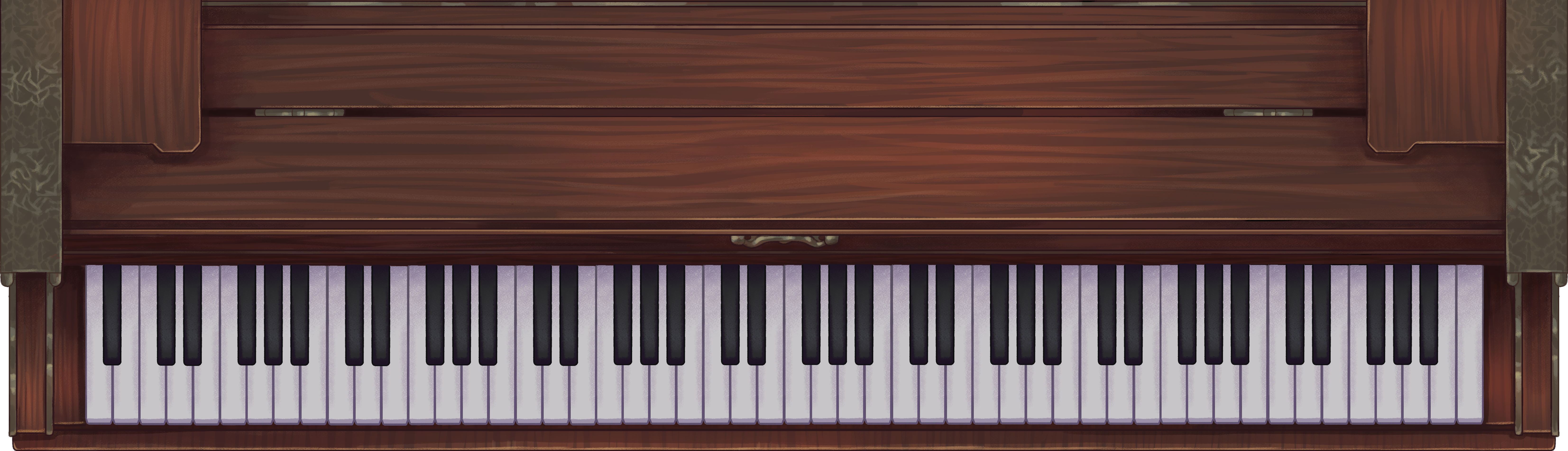
- 88-key piano display showing pressed keys in real-time (runs in the background perfectly if only on 1 monitor)
- Text overlay displaying sent commands
- Auto-scrolling to keep recent actions visible
Copy what you played
- You can copy the notes you played in the keys you set with F9
- Makes it easy to make tabs for yourself or your friends
Setup
- Plug in your MIDI device and open up Guild Wars 2 before running the app
- Equip your instrument in game and shift to the middle octave (It should be the green in your effects)
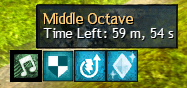
- Start playing from the middle octave on your MIDI device
- Thats it! Everything should work from there
Controls
- F6 - Save keybindings
- F7 - Clear text display
- F8 - Enter/exit rebind mode
- F9 - Copy display text to clipboard
- F10 - Set octave shift delay manually
- F11 - Restore default bindings
(These keys are used to avoid keybind conflicts that different people may have)
Rebinding
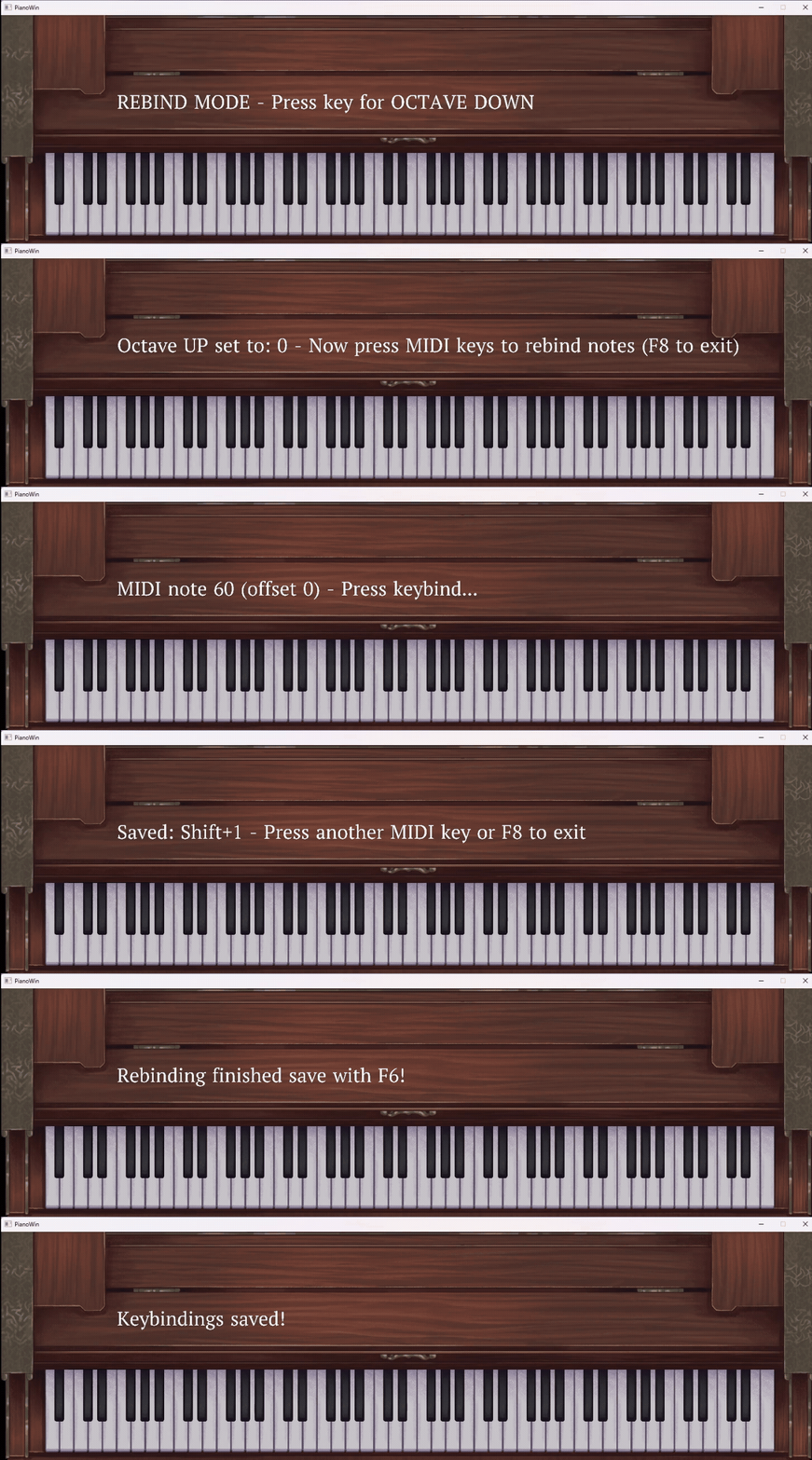
For piano key rebinding Press F8 and follow the prompts:
- Press a key for “octave down”
- Press a key for “octave up”
- Play a piano note, then press the key you want for that note
(Key combos with Shift, Alt and Ctrl are supported)
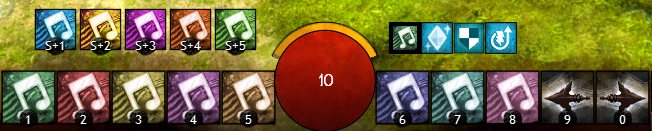
The default keybinds have the white notes on 1-8, the black notes on shift+(1-5) and the octave shifts as 9 and 0
For manual ping rebinding Press F10 and follow the prompts: (if not in Admin mode for automatic ping)
- Enter octave delay (ms) and press Enter to confirm
Tip: You can view your in game ping from the bottom right of your options menu and should set it slightly higher than what it gives you so the shifts dont skip
Saving your bindings with F6 will have them load automatically on startup.
Building
Requires:
- Visual Studio 2019+ for self building
Credits
Bleuuart for the piano assets: https://bleuuart.carrd.co/